
How to Change Your Facebook Password From Your Phone
Want to change your Facebook password but do not know where to tap? This quick guide shows you every step with marked images, arrows, and circles so you can follow along easily.
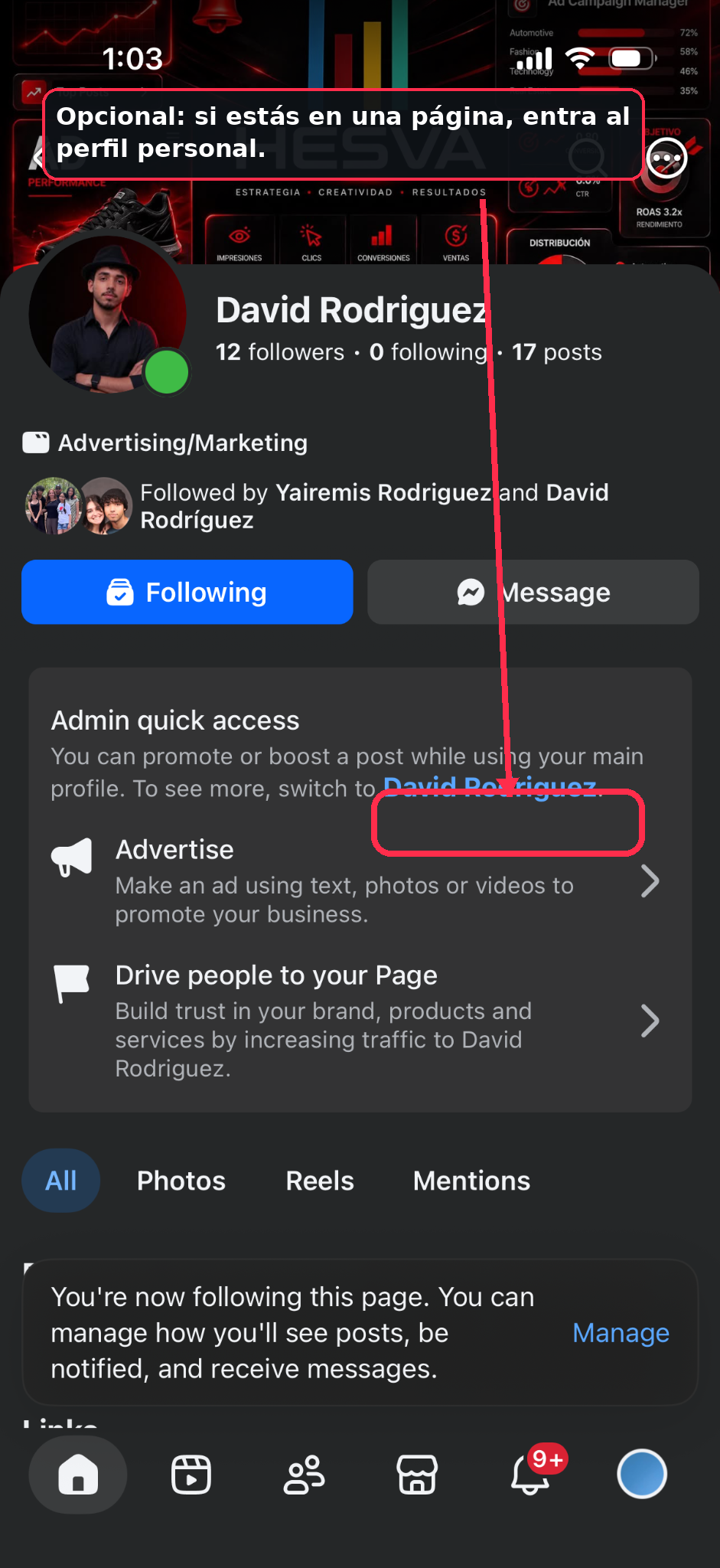
0If you are on a Page, switch to your personal profile
If Facebook is showing you a business page or professional profile, first switch back to your personal profile.
This helps you make sure you are changing the correct Facebook password.
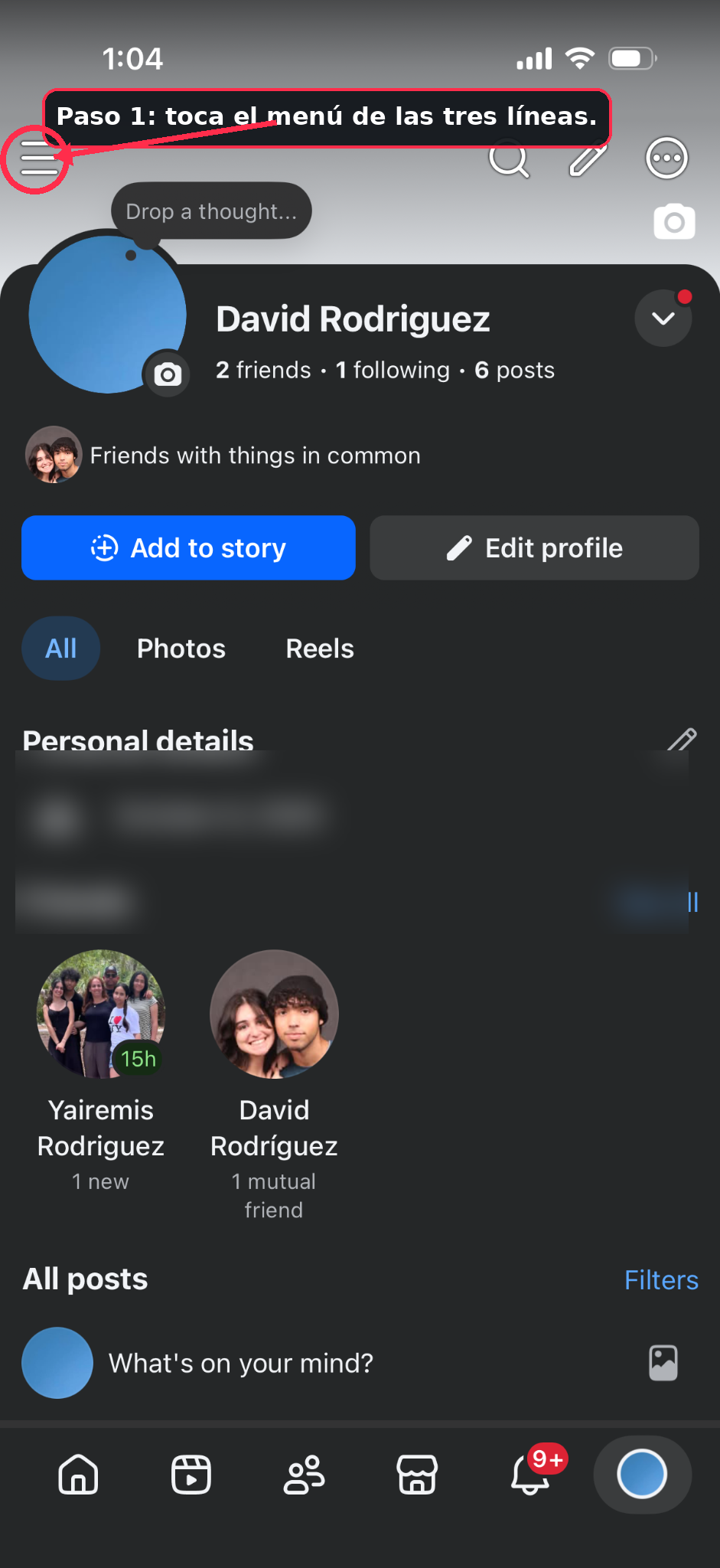
1Open the Facebook menu
Open Facebook and tap the three-line menu.
Depending on your phone, this button may appear at the top or bottom of the app.
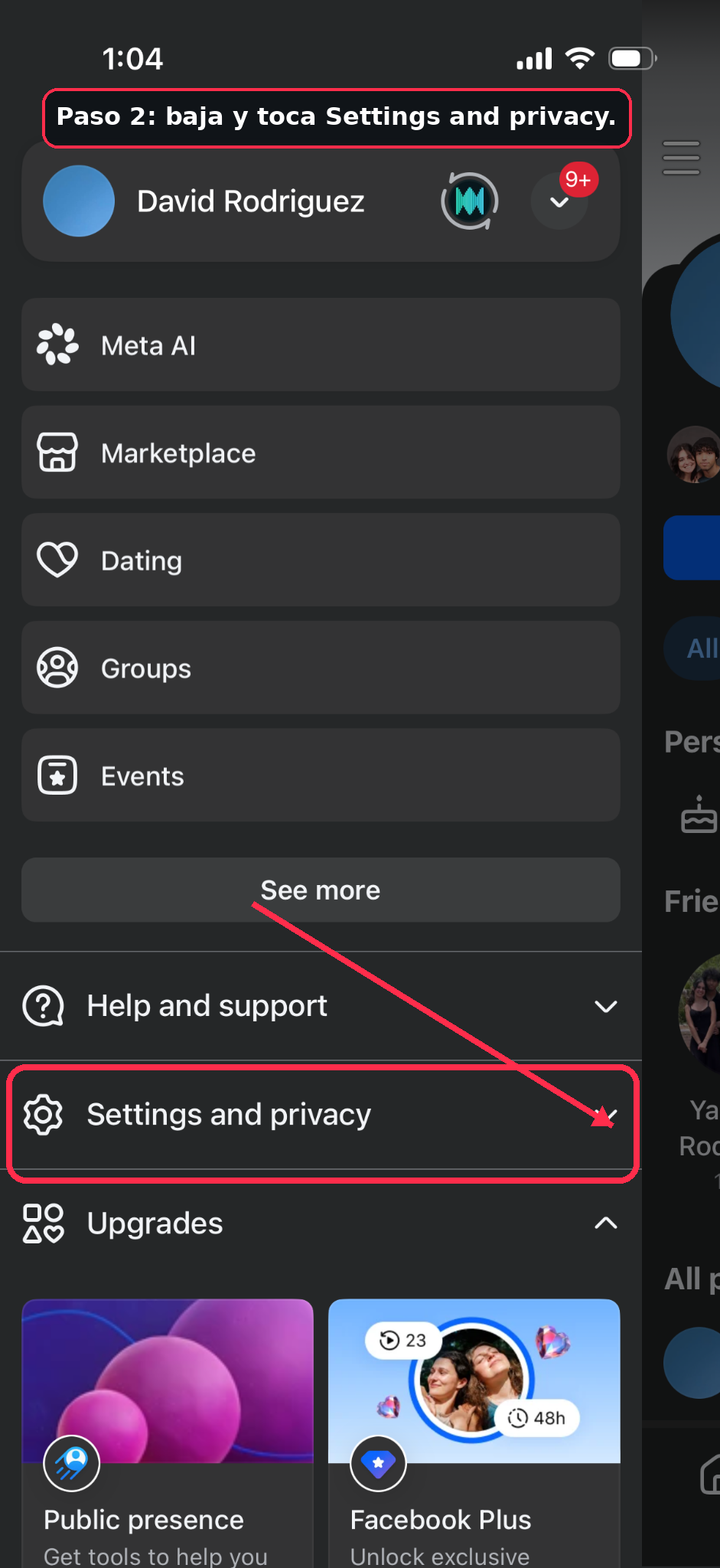
2Tap “Settings and privacy”
Once the menu opens, scroll down and find Settings and privacy.
This section contains important options for your Facebook account.
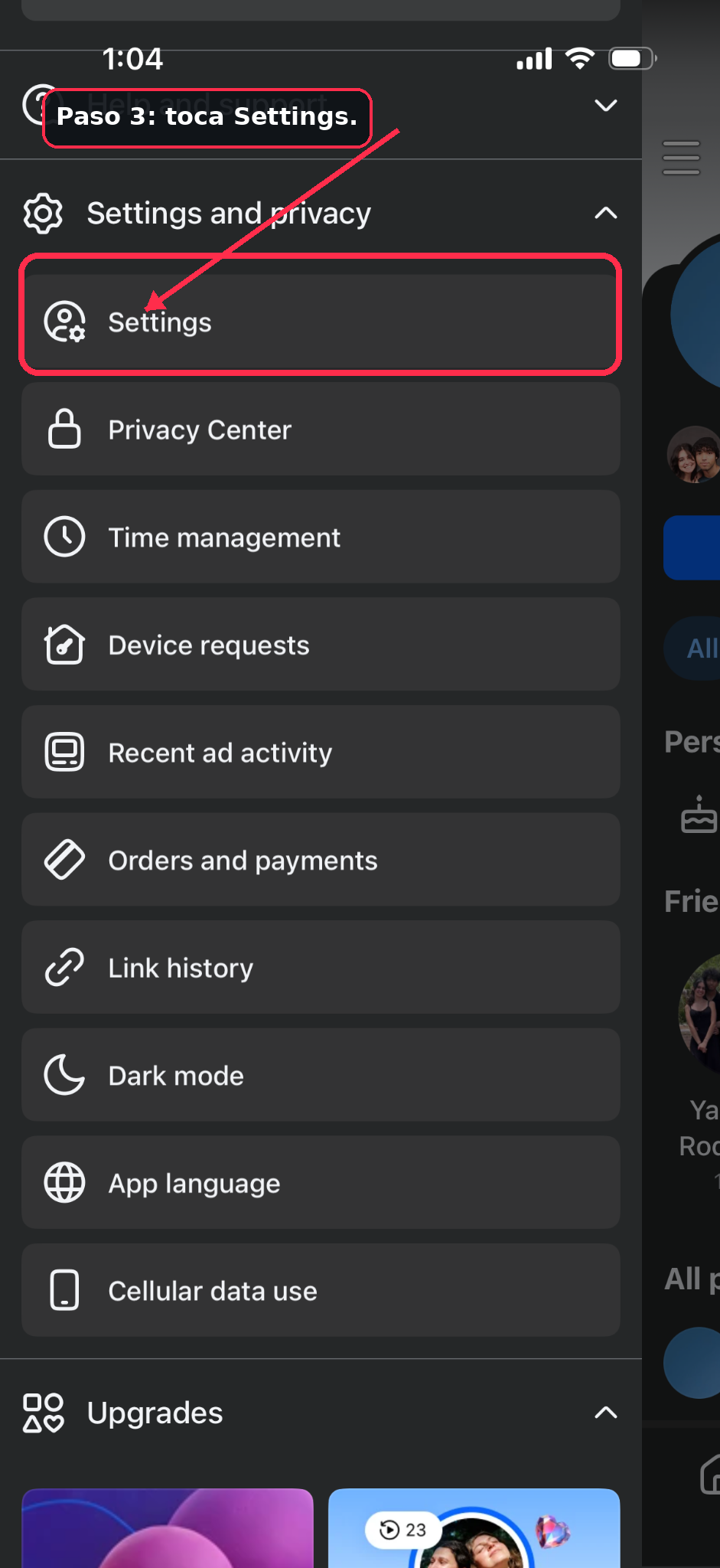
3Tap “Settings”
After opening Settings and privacy, tap Settings.
This opens the main settings area for your Facebook account.
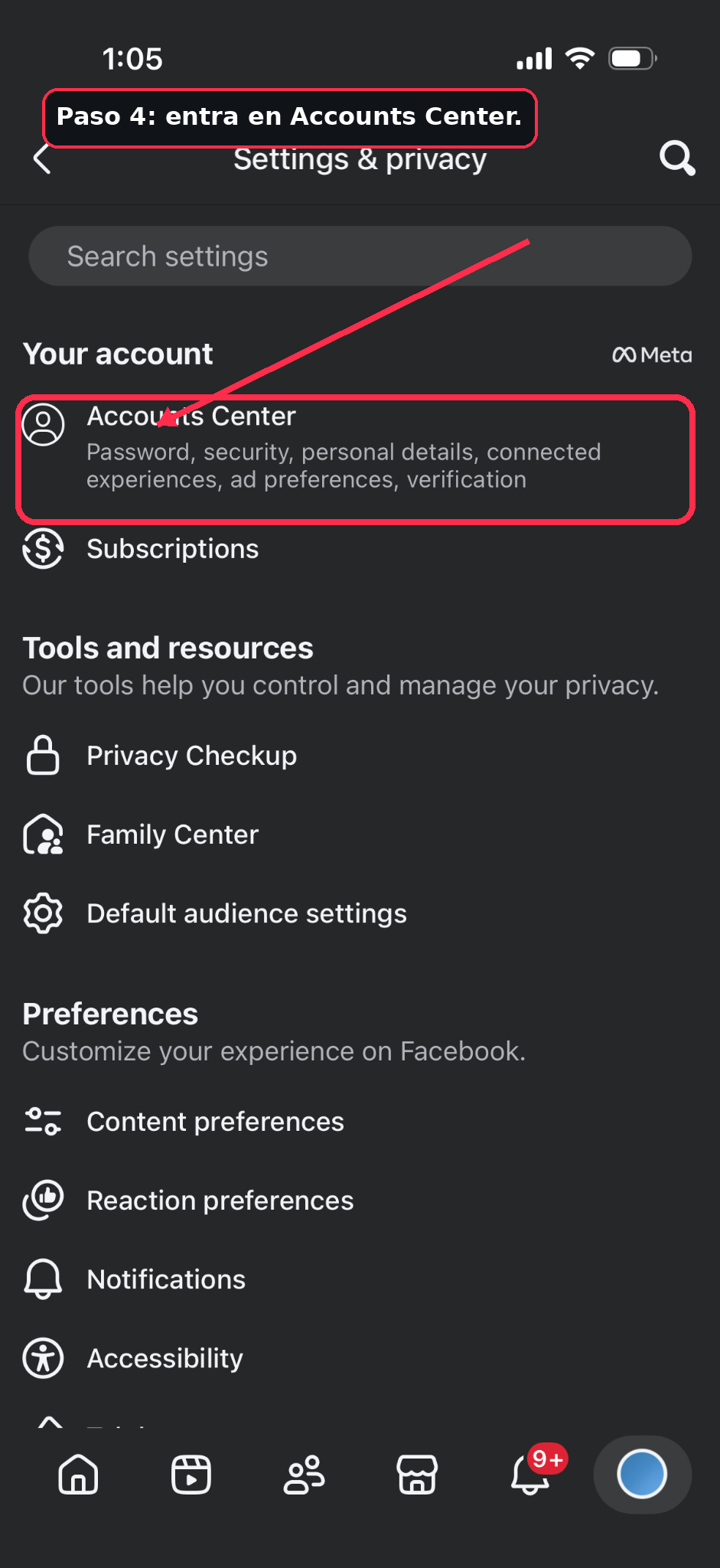
4Open “Accounts Center”
Inside settings, tap Accounts Center.
This is where Meta manages connected accounts like Facebook and Instagram.
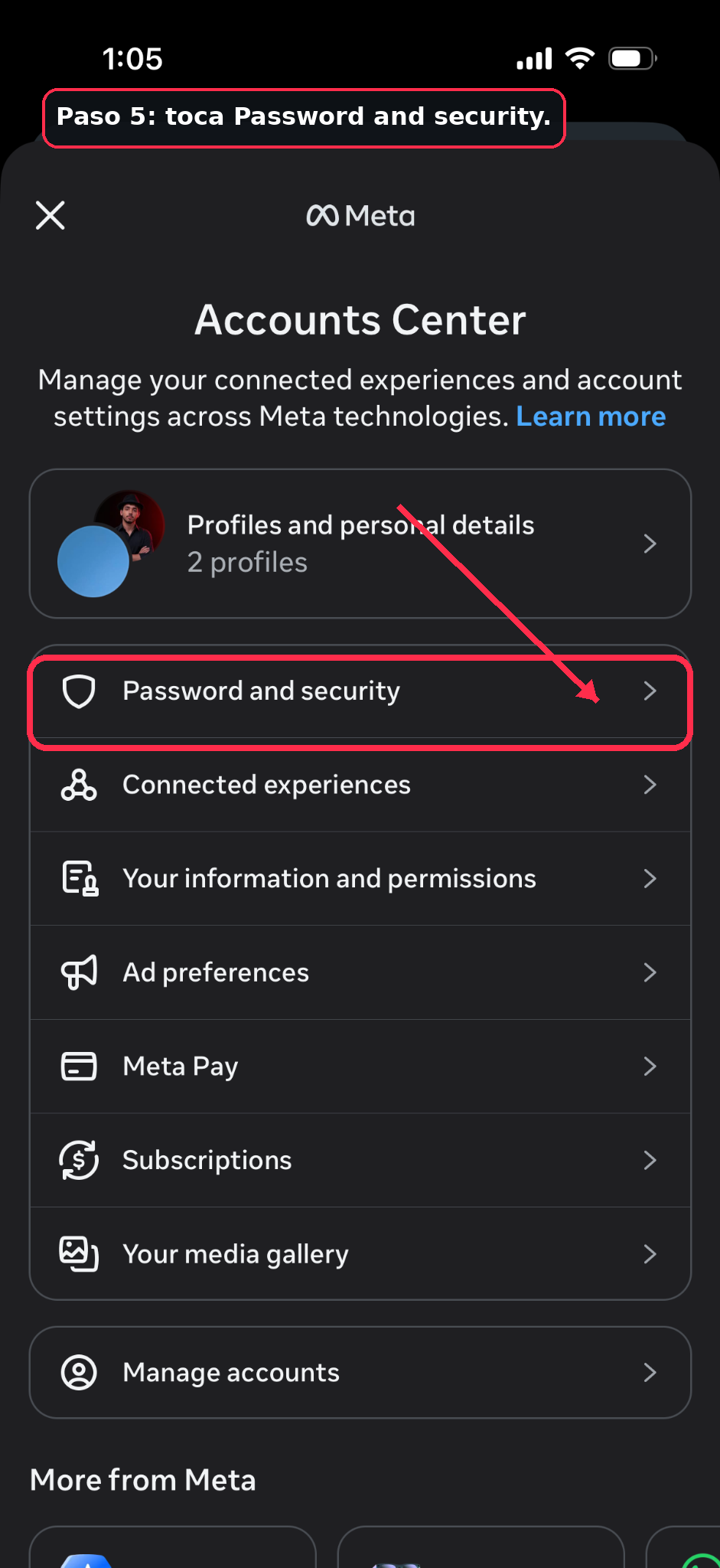
5Tap “Password and security”
In Accounts Center, look for Password and security.
This is where you can change your password, review logins, and manage security settings.
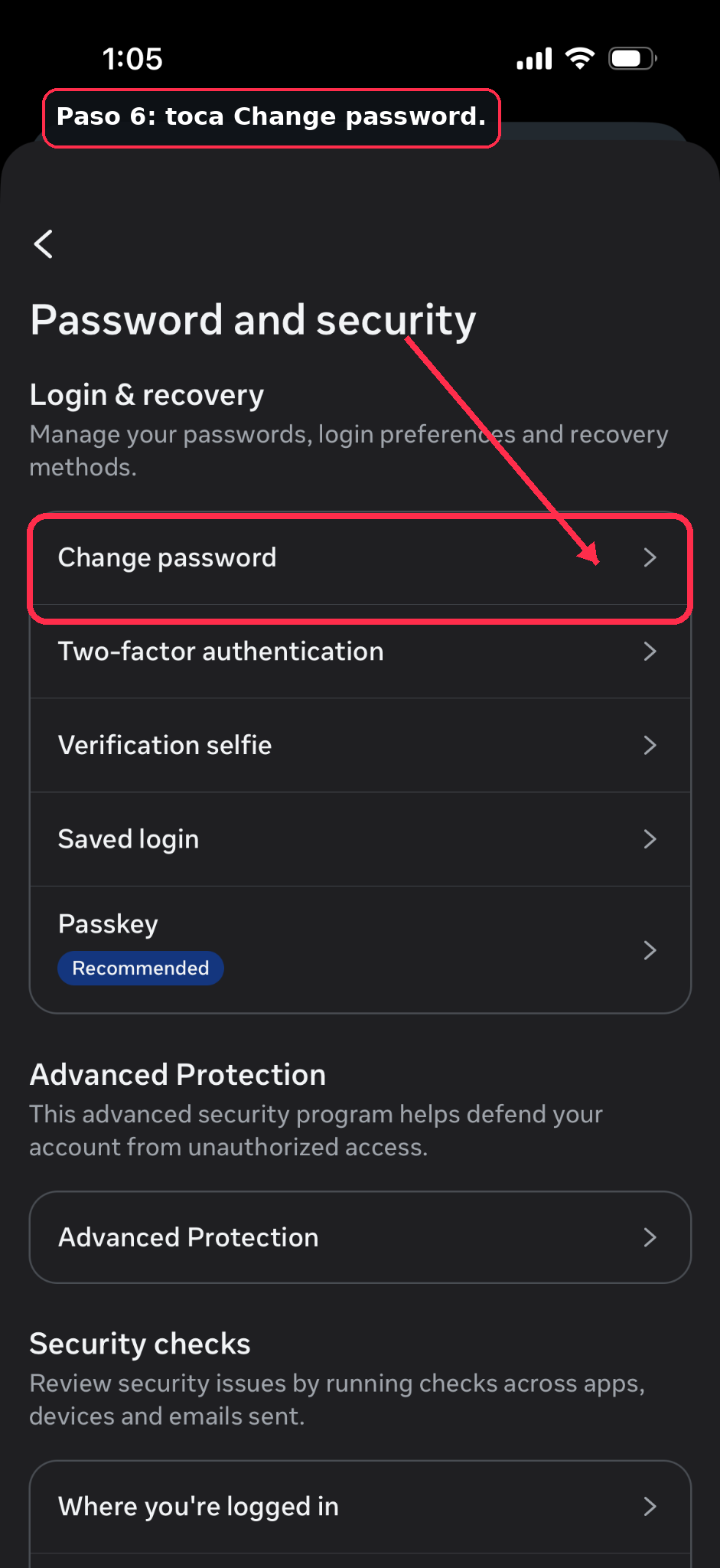
6Tap “Change password”
Inside Password and security, tap Change password.
This opens the screen where you can create a new password.
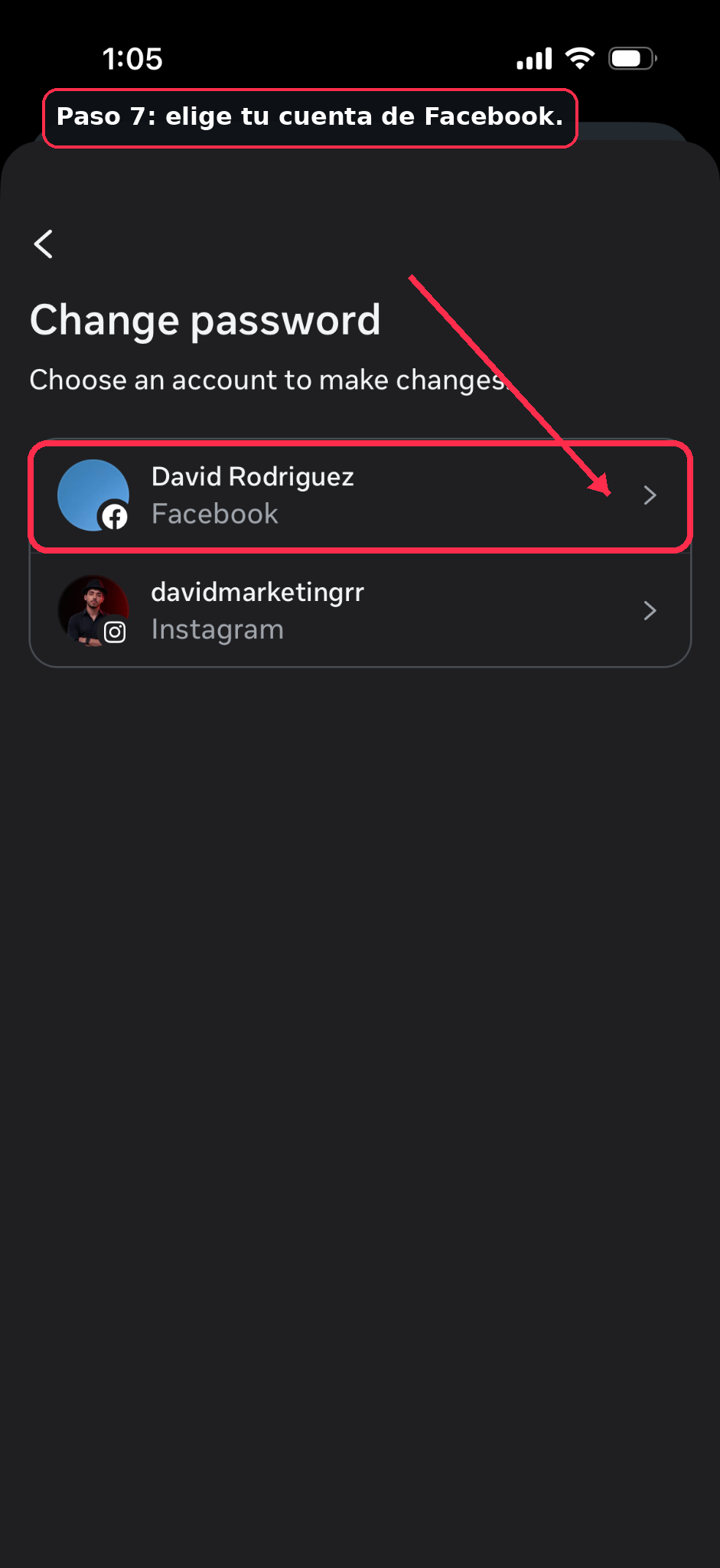
7Choose your Facebook account
If your Facebook and Instagram accounts are connected, Meta will ask which account you want to update.
Choose the account that says Facebook.
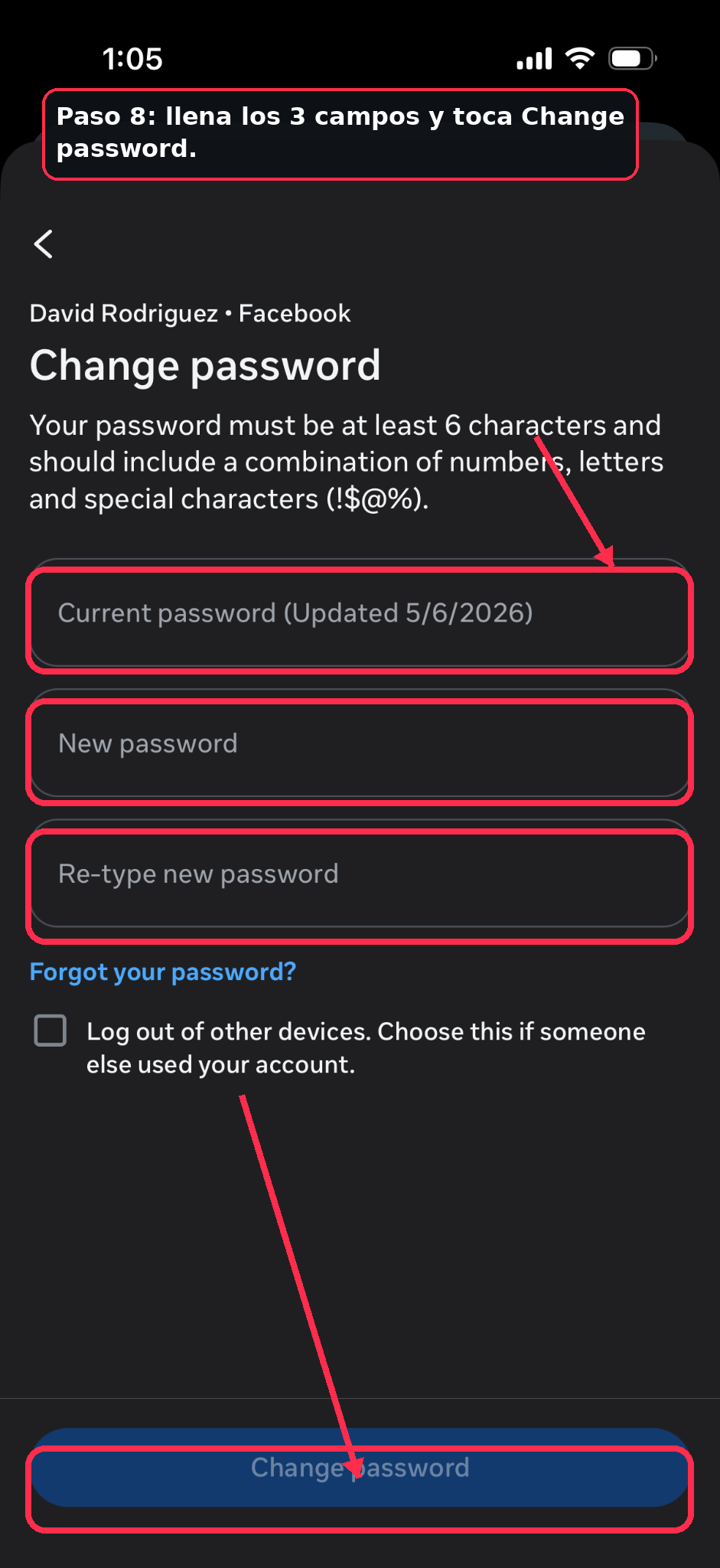
8Enter your current password and your new password
Fill in the three fields: current password, new password, and re-type new password.
When everything is correct, tap Change password.
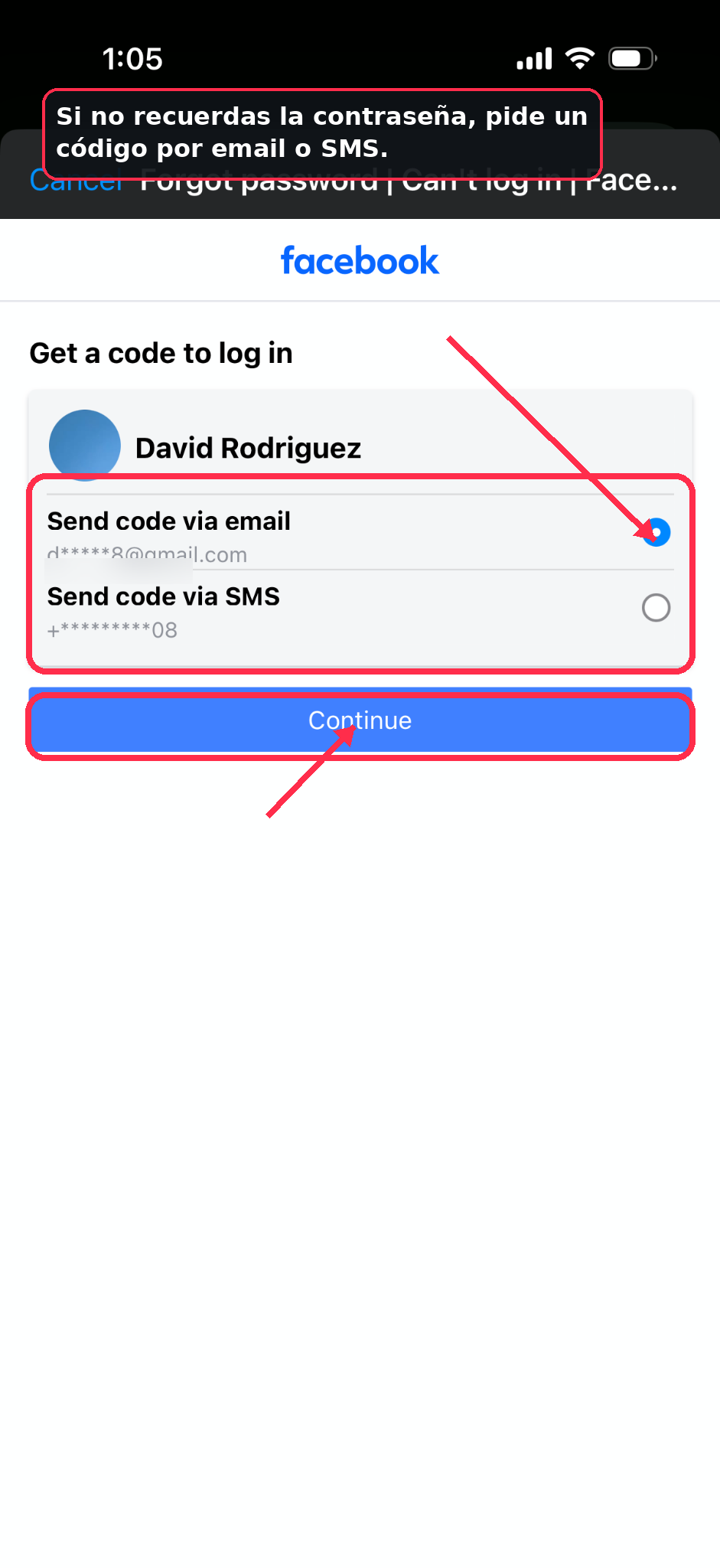
What if you forgot your current password?
Tap Forgot your password?.
Facebook can send you a login code by email or SMS to confirm it is really you.
Frequently Asked Questions
Can I change my Facebook password if I do not know my current password?
Yes. Tap Forgot your password? and ask Facebook to send you a code by email or SMS.
Should I log out of other devices?
Yes, especially if you think someone else may have used your account. You can choose the option to log out of other devices before confirming the password change.
What should I do if I do not receive the code?
Check your spam folder, wait a few minutes, or try the other available method: email or SMS.